
Budget planner for Android Plan a monthly budget, one category at a time.
Give groceries, transport or anything else a limit for the week, the month or the year. Coinly keeps count as you spend and shows what is left.

Coinly is available for Android only. There is no iPhone version.
- Weekly, monthly or yearly
- Alerts when you choose
- Free, no account
Free to download · Android 8.0 or later · Optional in-app purchases
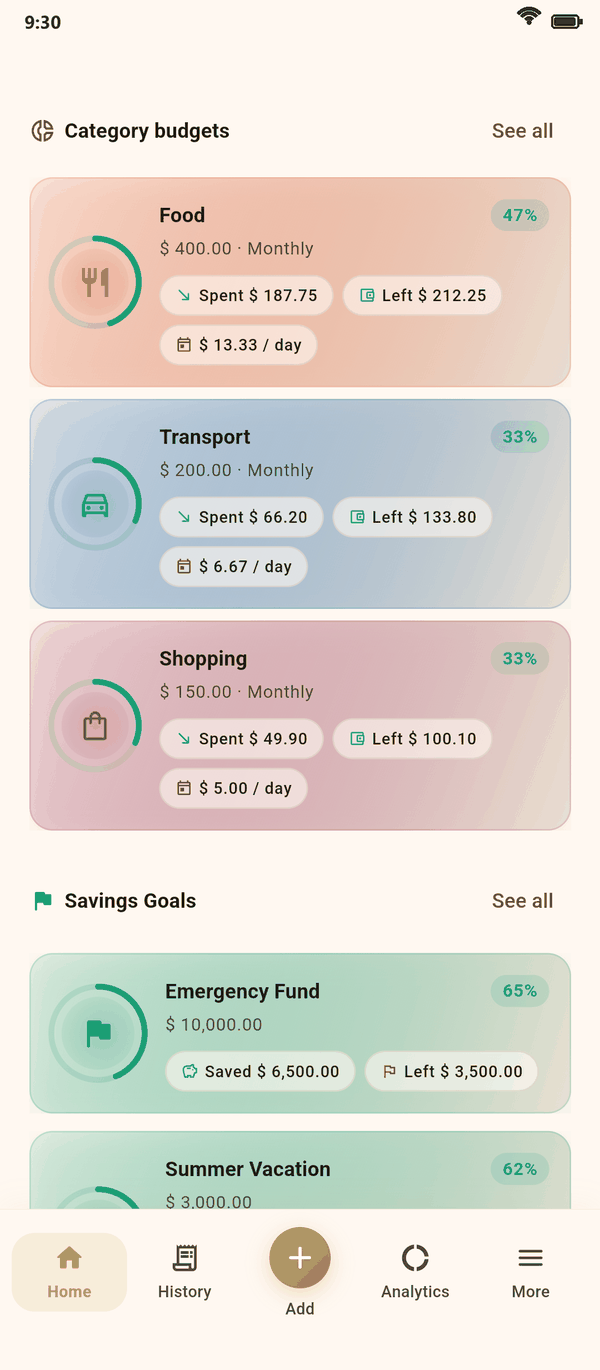
Screens from the app, shown with sample data.
How it works
A spending limit for each category
A budget in Coinly is a limit for one category, such as Food or Transport, over a week, a month or a year. Pick the category, type the limit and choose the period. A budget on a parent category also counts what you spend in its subcategories, unless you switch that off.
Each budget belongs to one account and is kept in that account's currency, so a budget for your card only counts what you pay with that card.
- What you have spent and what is left, updated with each expense
- What the limit comes to per day: 400 for a 30-day month reads 13.33 a day
- A ring that turns amber at 65% of the limit and red at 90%
- Only expenses count. Transfers, savings and debt payments stay out
One category budget, as the app shows it. Sample data.
Your calendar
Months that start on payday
Budgets follow three settings under Settings, Preferences: the first day of the week, the first day of the month and the first month of the year.
Paid on the 25th? Start the month on the 25th, and every monthly budget runs from one payday to the next. The week can start on any day, and the year in any month, for a financial year that begins in April.
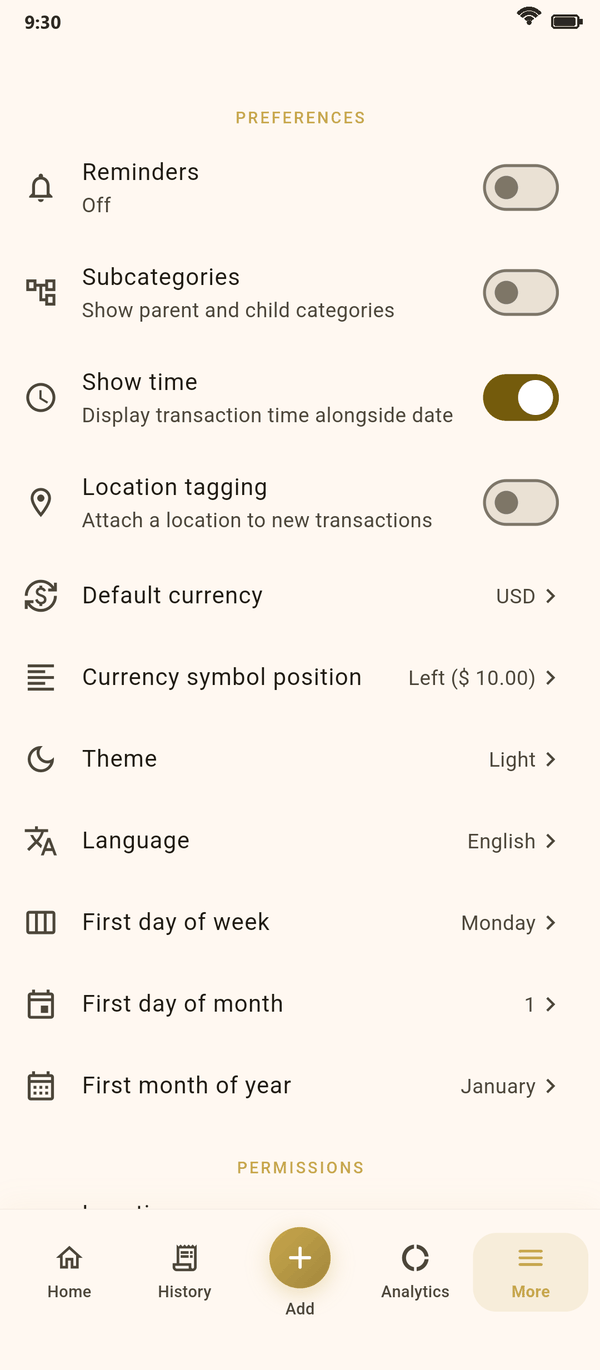
Settings, Preferences: where weeks, months and years begin.
Budgets in Coinly
Everything a monthly budget needs
The planner is part of the expense tracker, so every expense you record already counts toward the right budget.
An alert at your threshold
Set each budget's alert anywhere from 50% to 100% of the limit, 80% unless you change it. Coinly notifies you when an expense takes you past it.
Bills count by themselves
Set up rent, subscriptions or a gym fee as recurring transactions, and each one counts toward its budget when it comes round.
The period that fits
Weekly for groceries, monthly for bills and eating out, yearly for holidays, gifts or insurance.
Your top three on Home
The first three budgets in your order appear on Home, so opening the app shows where the month stands.
One per category, per account
Budget as many categories as you like, and give the same category its own limit on another account.
Free, on your phone
Budgets cost nothing, show no ads and need no account. They live with the rest of your ledger, on your device.
Savings goals
Save toward something, right beside your budget
A savings goal has a name, a target and, if you like, a date to reach it by. Add money to it whenever you can, or have the same amount set aside every month. Coinly shows what you have saved, what is left and how many days remain.
Money in a goal leaves the account's balance but does not count as spending, and you can withdraw it again if plans change.
- An optional target date, with a countdown
- A monthly amount that is set aside automatically
- A history of every amount added or withdrawn
A savings goal in Coinly. Sample data.
Get started
Set up your first budget
It takes about a minute, and nothing to sign up for.
Install Coinly
Get it free on Google Play and add the accounts you spend from: cash, a bank account, a card.
Add a budget
Open Category budgets from Home or from Settings and tap Add budget. Choose the category, the limit and the period.
Record what you spend
Add expenses as they happen, or let recurring transactions add your bills. Each one counts toward its budget.
Adjust as you go
Change a limit when life changes, and put your budgets in the order that matters to you.
Is the budget planner free?
Yes. Budgets, savings goals and debts are free, with no ads and no subscription. Only the optional AI capture uses coins.
Can my budget month start on payday?
Yes. In Settings, Preferences, set the first day of the month to any day from 1 to 28, and every monthly budget follows it.
Do transfers and savings count against a budget?
No. Only expenses count. Moving money between your accounts, adding to a savings goal and paying back a debt stay out of your budgets.
Will Coinly warn me before I overspend?
Yes, if you allow notifications. Each budget has an alert threshold between 50% and 100% of its limit, and Coinly notifies you when an expense you add takes you past it.
Can I set one budget for all my spending?
Not today. Each budget covers one category on one account. To keep the whole month in check, budget the categories where most of your money goes.
Can I keep budgets in different currencies?
Yes. A budget belongs to one account and uses that account's currency, so one budget can be in euros and another in dollars.
More about Coinly
Give this month a plan.
Install Coinly, set a limit for the categories you care about and see what is left at a glance.
Coinly is available for Android only. There is no iPhone version.
Free to download · Android 8.0 or later · Optional in-app purchases